

Download Ript – Free Clipboard Organizer for Windows
Overview
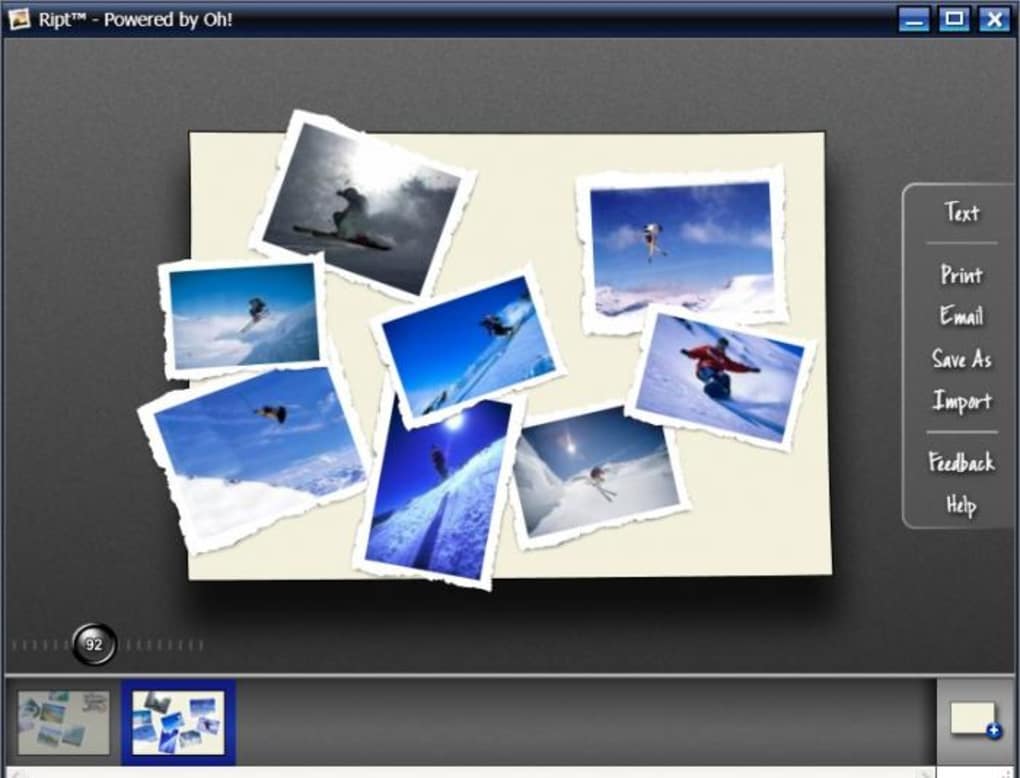
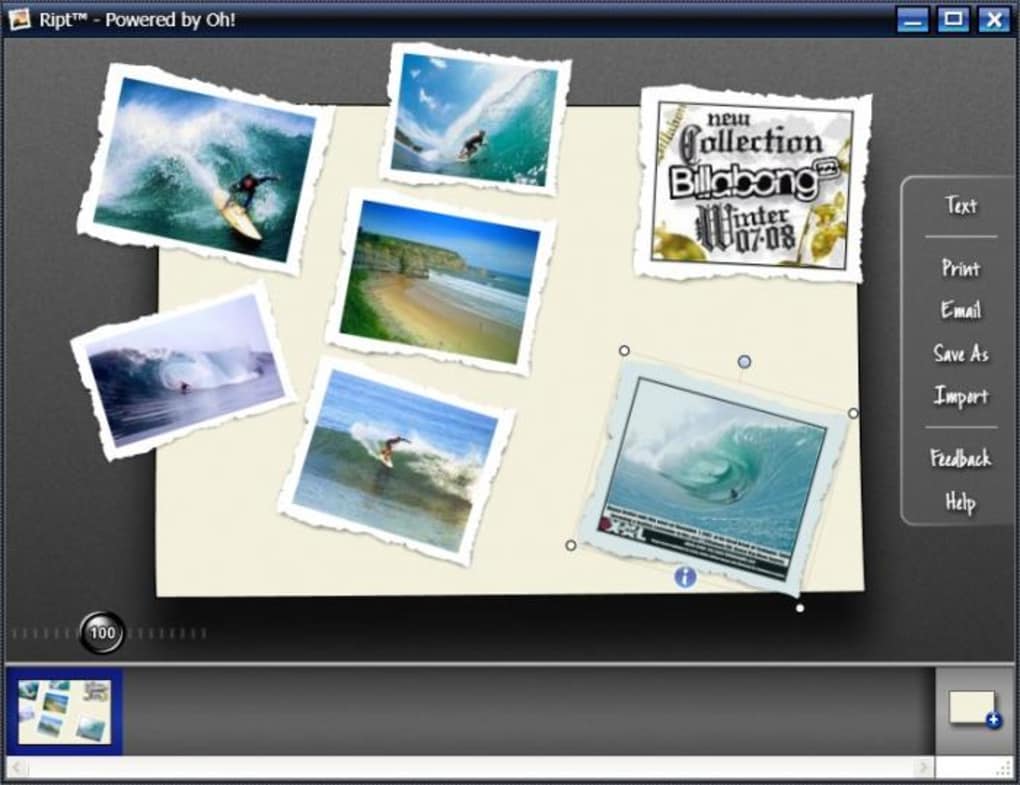
Ript is a lightweight, free utility that transforms the way you collect and organise visual content from the web. Designed as an add‑on for Internet Explorer and Firefox, Ript adds a floating clipboard that instantly accepts dragged images, screenshots, and text snippets. Once an item lands on the clipboard you can resize, rotate, annotate, and group it with other clippings, creating custom collections that are ready to print, share, or export.
Think of it as a digital scrapbook that lives on your desktop, allowing you to “rip” anything you see on screen without the need for repetitive right‑click‑save actions. The tool stores all captured media in a hidden folder (C:\\Documents and Settings\\[User]\\Application Data\\Ript) so you can retrieve original files later. Ript’s simplicity makes it ideal for researchers, designers, students, and anyone who regularly gathers visual references.
By consolidating clippings into a single, easily accessible pane, the software reduces desktop clutter and speeds up the workflow for projects that require rapid visual aggregation. Its interface is deliberately minimal – a semi‑transparent panel that can be docked anywhere on the screen, ensuring that you never lose sight of your main browser window. Ript also supports basic editing functions: you can add captions, change background colours, and arrange items in layers, mimicking the tactile experience of arranging paper cut‑outs on a real desk.
Whether you are building a mood board, compiling product images for an e‑commerce site, or simply saving inspirational pictures for later, Ript offers a secure, no‑frills solution that works offline and does not require an internet connection after installation.
Key Features
- Drag‑and‑Drop Clipboard: Instantly capture images, screenshots, and text by dragging them onto a floating panel.
- In‑App Editing: Rotate, resize, and add annotations or captions without leaving the workspace.
- Multi‑Collection Management: Create separate boards for different projects and switch between them with a single click.
- Automatic File Storage: All original files are saved in a dedicated Ript folder, making future retrieval effortless.
- Lightweight & Secure: The installer is under 5 MB, runs without admin privileges, and does not transmit data to external servers.
- Compatibility with IE & Firefox: Seamlessly integrates as a toolbar button, preserving the native browsing experience.
- Print‑Ready Output: Export collections as PDFs or high‑resolution image mosaics for quick sharing.
- Customisable Appearance: Adjust the clipboard opacity, colour theme, and docking position to match your workflow.
- Free Updates: Regular patches improve stability and add minor enhancements without cost.
- Offline Functionality: Works completely offline after installation, ensuring privacy and speed.
Installation & Usage Instructions
Step‑by‑Step Installation
Downloading and installing Ript is straightforward. Begin by visiting the official Ript download page and click the Download Free button. The installer is a standard Windows executable (.exe) that will prompt you for a destination folder – the default location (C:\\Program Files\\Ript) works well for most users.
After confirming the license agreement, the installer copies the necessary files and registers the toolbar button in Internet Explorer and Firefox. No reboot is required, but you may need to close and reopen your browsers to see the new icon. For users with strict security policies, the installer can be run in “portable” mode by extracting the zip archive and manually placing the Ript.dll file into the browser’s extensions directory.
How to Use the Floating Clipboard
Once installed, a small, semi‑transparent panel appears on your screen. To start ripping content, simply click and hold an image or text block on any webpage, drag it onto the Ript panel, and release the mouse button. The item instantly snaps into place, and a toolbar appears with options to rotate, resize, or add a caption.
You can move items around within the panel by dragging them, or stack them in layers using the Bring Forward and Send Backward commands. To create a new collection, click the New Board button on the top‑right corner of the panel; a fresh canvas opens, allowing you to keep project‑specific clippings separate. When you’re satisfied with a board, choose Export to generate a PDF or a high‑resolution PNG mosaic.
All original files remain stored in the hidden Ript directory, so you can later open them directly in Photoshop, GIMP, or any image editor.
Tips for Maximising Productivity
For power users, consider assigning keyboard shortcuts to common actions (e.g., Ctrl + R to open the clipboard). The settings menu also lets you define a default save path, change the panel opacity, and enable “auto‑snap” to grid lines for precise alignment. If you frequently work with large image sets, enable the Batch Resize option to standardise dimensions before exporting. Finally, remember to regularly check the Updates tab – the developers release minor patches that improve compatibility with newer browser versions.
Compatibility, Pros & Cons
Ript is built exclusively for Windows operating systems, supporting Windows 7, Windows 8, Windows 10, and Windows 11 (both 32‑bit and 64‑bit). The software does not have native macOS, Android, or iOS versions, but it can run under a Windows virtual machine on those platforms if needed.
Pros
- Intuitive drag‑and‑drop interface reduces the time spent saving individual files.
- Free, with no hidden fees or subscription model.
- Low system impact – consumes under 30 MB of RAM while idle.
- All edits are performed locally, ensuring privacy and security.
- Export options (PDF, PNG) simplify sharing with teammates.
- Works offline, ideal for environments with restricted internet access.
Cons
- Limited to Internet Explorer and Firefox; Chrome and Edge are not supported.
- No native mobile version, restricting use on tablets and smartphones.
- Feature set is basic compared to full‑featured digital scrapbook apps.
- Storage folder is hidden, which may confuse less‑technical users.
- Occasional UI glitch when dragging very large images on older GPUs.
Overall Rating: 4 out of 5 stars – Ript delivers exactly what it promises: a fast, free way to collect and organise visual clippings. While the lack of Chrome support is a drawback, the core functionality is solid and the tool remains a valuable addition for Windows power users.
Frequently Asked Questions
Can I use Ript with Google Chrome?
Ript currently integrates only with Internet Explorer and Firefox. The development team has indicated that Chrome support may be added in a future release, but for now users need to rely on the supported browsers.
Is Ript safe to install on a corporate PC?
Yes. The installer is digitally signed, does not require admin rights, and stores all data locally. No background network traffic is generated, making it suitable for secure corporate environments.
Where are the original image files saved?
All original files are automatically saved to C:\Documents and Settings\. The folder is hidden by default, but you can reveal it through Windows Explorer’s folder options.
Can I export a collection as a single PDF?
Absolutely. Ript includes an Export button that lets you generate a high‑resolution PDF or a PNG mosaic of the entire board, making it easy to share with colleagues or print for offline review.
Is there a way to back up my Ript collections?
Since all files are stored locally, you can back them up like any other folder. Simply copy the Ript directory to an external drive or cloud storage service to preserve your collections.
Conclusion & Call to Action
Ript fills a niche that many Windows users have long been missing – a simple, free clipboard that turns web clippings into organised visual boards without the hassle of manual saving. Its lightweight design, offline functionality, and straightforward drag‑and‑drop workflow make it a practical tool for designers, marketers, students, and anyone who needs to gather visual references quickly. While the lack of Chrome support and mobile versions limits its reach, the core experience remains robust and reliable. If you spend time curating images, screenshots, or text snippets, installing Ript can shave minutes off every research session and keep your desktop tidy.
Ready to streamline your visual workflow? Download Ript now for free, and start building your own digital scrapbooks today.







